Well, my laptop died while I was working on the post about sharing recipes. Good a time as any to see how well I can write a post on mobile. I’d like to use my phone to do a lot of the documentation on brew day anyway. I especially want to try adding links to recipes from Brewfather and adding photos.
Photos
Let’s try adding some photos.
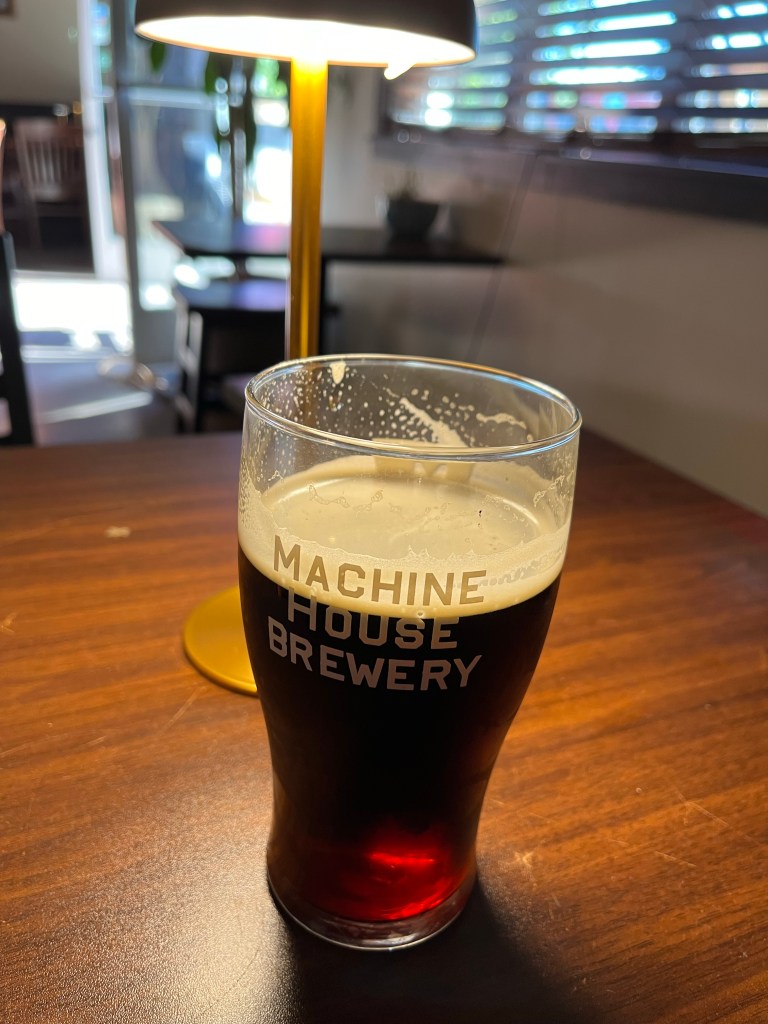
Cool, I was able to add a photo from my library. I added a picture of a Dark Mild from Machine House, ABV 3.7%. That was really easy. Now I’ll see if I can take a picture directly through the WP app.
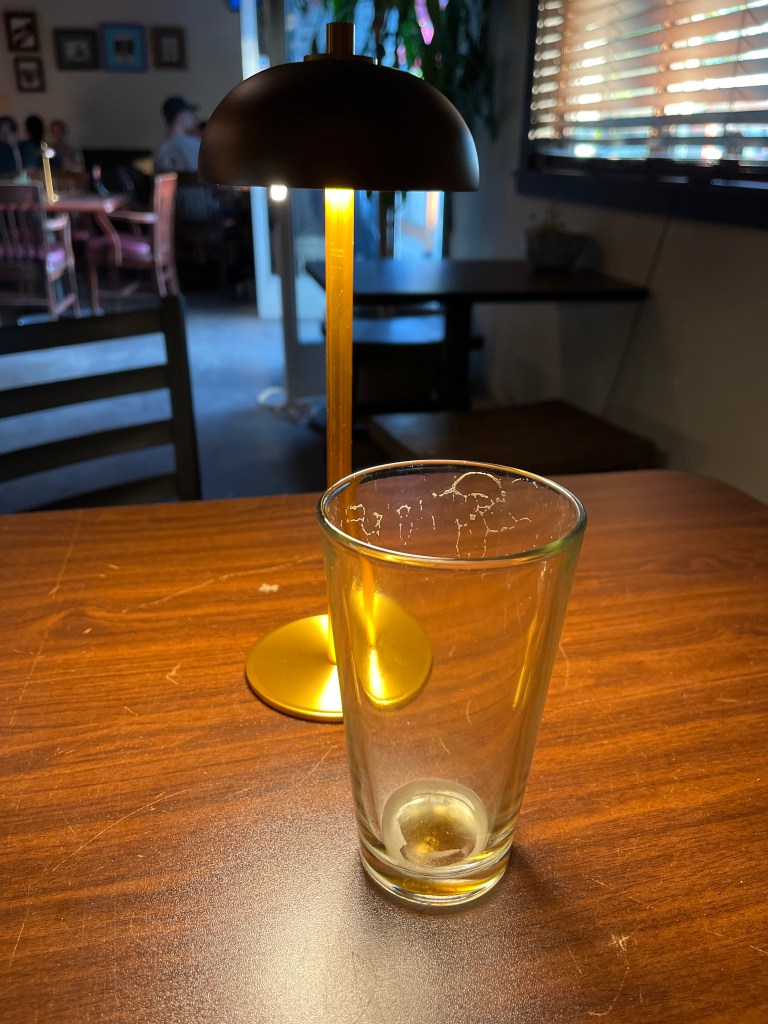
Wow, it was quite easy to take a picture directly with the WordPress app. I like that it has space to add a caption to the photo by default. The beer I took a picture of was a Dark Lager (ABV 4.6%).
So far, I’m quite happy with the potential of WordPress to be a functional part of my brew day.
Links
Now let’s see if I can switch between the Brewfather app and here to share a link to the recipe.
https://share.brewfather.app/DgxE64RBeYb0Ge
So, there we go. There’s a link.
Now that I’ve done that, I’ll try to take long screenshot of the recipe from my phone.
Alright, that took some work. As was the problem on my laptop, I had trouble taking a screenshot that was larger than my screen. But there are apps that will let you join multiple images into one. I used Stitch It, and that’s the output of the image below. Stitch It requires purchase for $2.99 otherwise it shows ads between actions. But for a once-a-month brew day, it may be worth sitting through 30 seconds of ads to be able to include an image of the recipe in the article.
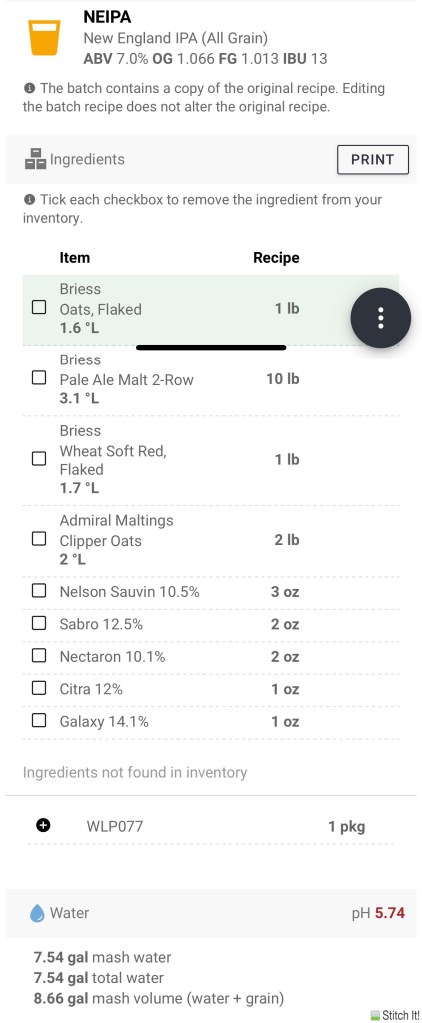
Before publishing, the recipe looks decent. Image text is smaller than the body text, and the image isn’t super clear, but it’s readable enough. Not ideal but fits my basic needs.
Overall, I’d say the mobile app of WordPress lets me do all of the basic things I want to do. It’s not all ideal, but it definitely gets the job done, even if it required some minor hacks.
 Weiven Beer